Building images from Git
A service can build its image from a Git repository with a Dockerfile, instead of pulling one from a registry. Each time you deploy, piqueld checks the repository out and builds the image on the host.
Before you start
- You have an account, and
piquelctlis signed in. Run the commands on this page on the host, or on any machine wherepiquelctlis signed in, unless a section says otherwise. On another machine, keepPIQUELD_URLset, as when you signed it in. - Creating an application needs
apps:create. Changing it needsapps:writeon it, and deploying it needsapps:deploy. Reading its build output needslogs:read; see permissions. - The host can reach the repository. Public repositories work as they are; private ones need an SSH key.
- The host’s
dockercommand has the Buildx plugin, which builds the images. - You trust the repository. Its Dockerfile’s instructions run on the host’s Docker engine.
Build a service from a repository
This example builds
docker/welcome-to-docker,
Docker’s sample web page, whose repository has a Dockerfile at its root, as
the application welcome. Its service, web, builds branch main, and is
healthy once it answers on /, on port 3000.
In the dashboard
-
Create the application
welcome, and add a service namedwebto it, as in deploying your first application. Its image doesn’t matter: the next step replaces it. -
Open
webon the application’s Services tab. On its Source & scaling tab, set Source to Git repository with Dockerfile. -
Fill in Repository with
https://github.com/docker/welcome-to-docker.git, Branch withmain, and Dockerfile path withDockerfile, then select Save changes. Commit (optional) pins a commit.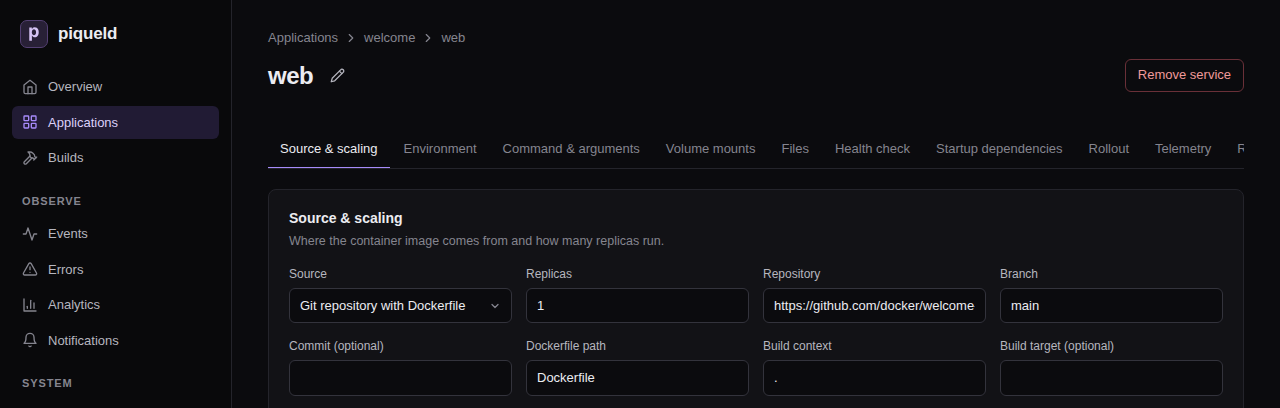
-
On its Health check tab, set Check type to HTTP, Port to
3000and Path to/, then select Save changes. -
On the application’s page, select Deploy to production.
With piquelctl
piquelctl app create welcome
piquelctl app service add welcome web --git https://github.com/docker/welcome-to-docker.git --branch main
piquelctl app service health http welcome web 3000 --path /
piquelctl --timeout 10m app deploy welcome
--timeout 10m gives the build time to finish. By default, piquelctl
waits 30 seconds.
To switch a service you already have to Git:
piquelctl app service source git welcome web https://github.com/docker/welcome-to-docker.git --branch main
source git replaces the whole source. Any option you leave out goes back to
its default: branch main, Dockerfile Dockerfile, context ., and no
build arguments or target. To change one setting, use its own command, such
as source branch, source dockerfile, or source context for a repository
whose Dockerfile isn’t at its root:
piquelctl app service source branch welcome web main
piquelctl app service source dockerfile <app> <service> build/Dockerfile
piquelctl app service source context <app> <service> build
These commands only save the change. Deploy it with
piquelctl --timeout 10m app deploy welcome, or add --deploy to the command.
From a manifest
-
Save this manifest as
welcome.toml:api_version = "piqueld.dev/v1alpha1" kind = "Application" [metadata] name = "welcome" [[spec.services]] name = "web" [spec.services.source] type = "git" [spec.services.source.repository] url = "https://github.com/docker/welcome-to-docker.git" branch = "main" [spec.services.source.build] type = "docker" dockerfile = "Dockerfile" [spec.services.healthcheck] type = "http" port = 3000 path = "/"repositorynames the repository and the branch to build.buildnames the Dockerfile, relative to the root of the repository. The build context is the root too, unless you setcontext.
-
Save the manifest and deploy it:
piquelctl --timeout 10m app apply --file welcome.toml --deploy
Manifest settings lists every setting of a source.
How it builds
Each deployment builds the latest commit of the branch. Docker reuses the steps that didn’t change, so later builds are faster. It pulls base images every time, so they stay up to date. If the checkout or the build fails, the deployment fails and the application keeps running what it ran before.
To build one exact commit instead, pin its full hash: fill in Commit (optional) in the dashboard, or run:
piquelctl app service source commit welcome web 68c1b9f87c41fb3fef2667e27149865c2f42d1eb
In the manifest, it is commit in repository:
[spec.services.source.repository]
url = "https://github.com/docker/welcome-to-docker.git"
branch = "main"
commit = "68c1b9f87c41fb3fef2667e27149865c2f42d1eb"
To follow the branch again, empty Commit (optional), run
piquelctl app service source commit welcome web --clear, or remove commit.
Pass build arguments and choose a stage
A Dockerfile can read build arguments with ARG, and a multi-stage one can
build a stage other than the last. For a Dockerfile with an ARG VERSION and
a runtime stage:
-
In the dashboard, on the service’s Source & scaling tab, select Add build argument under Build arguments (not secret), and fill in Build target (optional).
-
With
piquelctl, pass them tosource git, which replaces the whole source:piquelctl app service source git <app> <service> <url> \ --branch main --build-arg VERSION=1.10 --target runtime -
In the manifest, add
argsandtargettobuild:[spec.services.source.build] type = "docker" dockerfile = "Dockerfile" args = { VERSION = "1.10" } target = "runtime"
Build arguments aren’t secret. Docker stores them in the image, and piqueld shows them in the manifest and the build history. Give secrets to the running service instead.
The build settings accept variables.
The repository settings don’t: a variable there fails validation with
variable_not_allowed. An image built from a value that differs between
environments can’t be promoted from one to the other. See
keeping builds the same everywhere.
Build from a private repository
piqueld reaches private repositories over SSH, with a key belonging to the
daemon’s user, piqueld. Run these commands on the host. They use
/var/lib/piqueld, the user’s home directory when piqueld is
installed as described.
-
Create a key without a passphrase:
sudo -u piqueld mkdir -p -m 700 /var/lib/piqueld/.ssh
sudo -u piqueld ssh-keygen -t ed25519 -N '' -C piqueld -f /var/lib/piqueld/.ssh/id_ed25519
Git runs without a terminal, so it can’t ask for a passphrase.
-
Give the key read access to the repository. On GitHub, open the repository’s Settings, then Deploy keys, and add the contents of
/var/lib/piqueld/.ssh/id_ed25519.pub, without write access.GitHub accepts a deploy key on one repository only. To read several, add the key to a GitHub account that can read them all instead.
-
Connect once, so that SSH records the server’s host key:
sudo -u piqueld ssh -T [email protected]Check that the fingerprint SSH shows matches the server’s published one, such as GitHub’s, and answer
yes. Git can’t answer that question later. -
Use the repository’s SSH URL, such as
[email protected]:example/notes.git, as the service’s repository: in Repository in the dashboard, withpiquelctl app service source url, or asurlin the manifest’srepository.
Git uses the daemon user’s ~/.ssh and ~/.gitconfig, but not the host’s
/etc/gitconfig. piqueld refuses credentials written in a URL, such as
https://[email protected]/….
Build from the manifest’s own repository
When piqueld reads an application’s manifest from Git, as described in
deploying on push, its services can build from that same
repository. In the dashboard, set the service’s Source to Manifest
repository with Dockerfile. With piquelctl, pass self instead of the
repository’s URL:
piquelctl app service source git blog web self
piquelctl app service add blog worker --git self adds a service that builds
from it. In the manifest:
[spec.services.source]
type = "git"
repository = "self"

[spec.services.source.build]
type = "docker"
dockerfile = "Dockerfile"
The service builds the commit the manifest was read from, so a deployment’s manifest and images always come from one commit. It has no branch or commit of its own. Each environment builds the branch it follows.
Check that it works
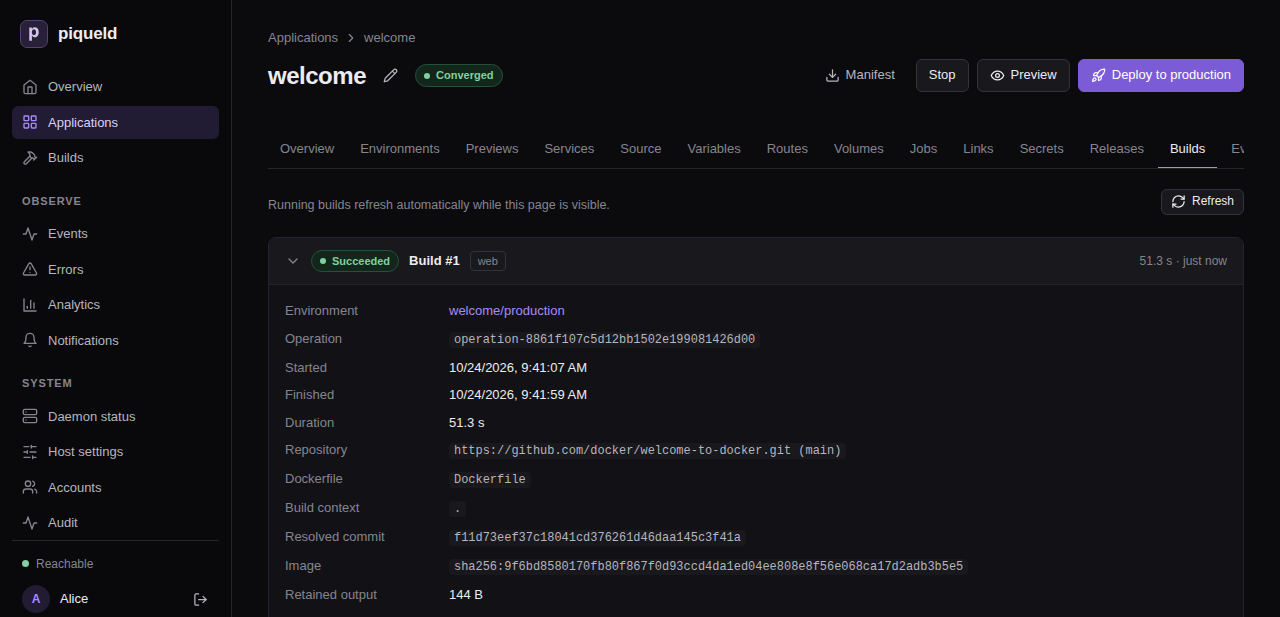
piqueld records every build, whether it succeeds or fails. In the dashboard, Builds in the sidebar lists the builds of every application, and an application’s Builds tab lists its own. Select a build to see the commit it built, the image it produced, and its output.
With piquelctl, app show lists each service’s source:
$ piquelctl app show welcome
welcome (app-01a16d91fb2c7b93bfe138a7d95dc56f)

Configuration revision: 1
Environment: production (env-01a16d91fb2c7b93bfe138a7d95dc560): ready, deploys from saved

Service: web
  Replicas: 1
  Source: git https://github.com/docker/welcome-to-docker.git (main)
List the application’s builds by its ID, which app show prints:
$ piquelctl builds list --application app-01a16d91fb2c7b93bfe138a7d95dc56f
1  env-01a16d91fb2c7b93bfe138a7d95dc560  web  Succeeded  1792839646134
Each line is a build: its number, the environment’s ID, the service, its state, and when it started, in Unix milliseconds. Read a build’s output by its number:
piquelctl builds logs 1
It prints the latest output. When there is more, its last line,
Info: Load older output with --before <offset>, gives the option that
prints the earlier part.
Troubleshooting
- The deployment fails with
git_build_failed. The checkout or the build failed. Its output ends with the error: open the build on the Builds page, or runpiquelctl builds logs. Fix the repository or the source’s settings, then deploy again.piquelctlsuggestsenv reconcile, which retries the same deployment: it only helps when the cause was temporary, such as the network. - The deployment fails with
preparation_timeout. A deployment hasreconciliation.prepare_timeout_seconds, 300 seconds by default, to check out and build its services. The host builds one image at a time, and the time spent waiting for other builds counts too. Raisereconciliation.prepare_timeout_secondsin the daemon’s configuration. piquelctltimes out, but the build goes on. The command stopped waiting, not the deployment, and exited with code 4. Follow the deployment on the Builds page or withpiquelctl --timeout 10m env wait welcome, or givepiquelctla longer--timeout.- The build output says
Permission denied (publickey)orHost key verification failed. The daemon’s user has no key the server accepts, or doesn’t know the server’s host key yet. Follow building from a private repository. - Validation fails with
git_credentials_inline. The repository URL is an HTTP or HTTPS URL with a user name or token in it, or has a password. Use an SSH URL, such as[email protected]:example/notes.git, and a key instead. - A Git setting of the host doesn’t apply, such as a rule rewriting
GitHub URLs to SSH. Git ignores
/etc/gitconfig: add the setting to the daemon user’s~/.gitconfig. - A large repository fails to check out. Checkouts must fit in
checkouts.max_bytes, 4 GiB by default, and hold at most 500,000 files and directories. piqueld doesn’t fetch Git submodules or Git LFS files. - The build output stops before the end. piqueld keeps the first 4 MiB of
each build’s output for 30 days.
build_history.log_max_bytesandbuild_history.log_retention_daysin the daemon’s configuration change that.