Deploying your first application
This page deploys a small website: one nginx container that piqueld checks
over HTTP. You create it in the dashboard, with piquelctl, or from a
manifest, then watch it run.
Before you start
- You have an account, and
piquelctlis signed in. Run the commands on this page on the host, or on any machine wherepiquelctlis signed in. On another machine, keepPIQUELD_URLset, as when you signed it in. - The host can pull images from Docker Hub.
Create and deploy it
The application, hello, has one service, web, which runs the
nginx:alpine image. Its health check tells piqueld that web is healthy
once it answers on port 80. Create it in any of these three ways.
In the dashboard
-
Open Applications, select New application, and fill in Application name with
hello. Select Create application.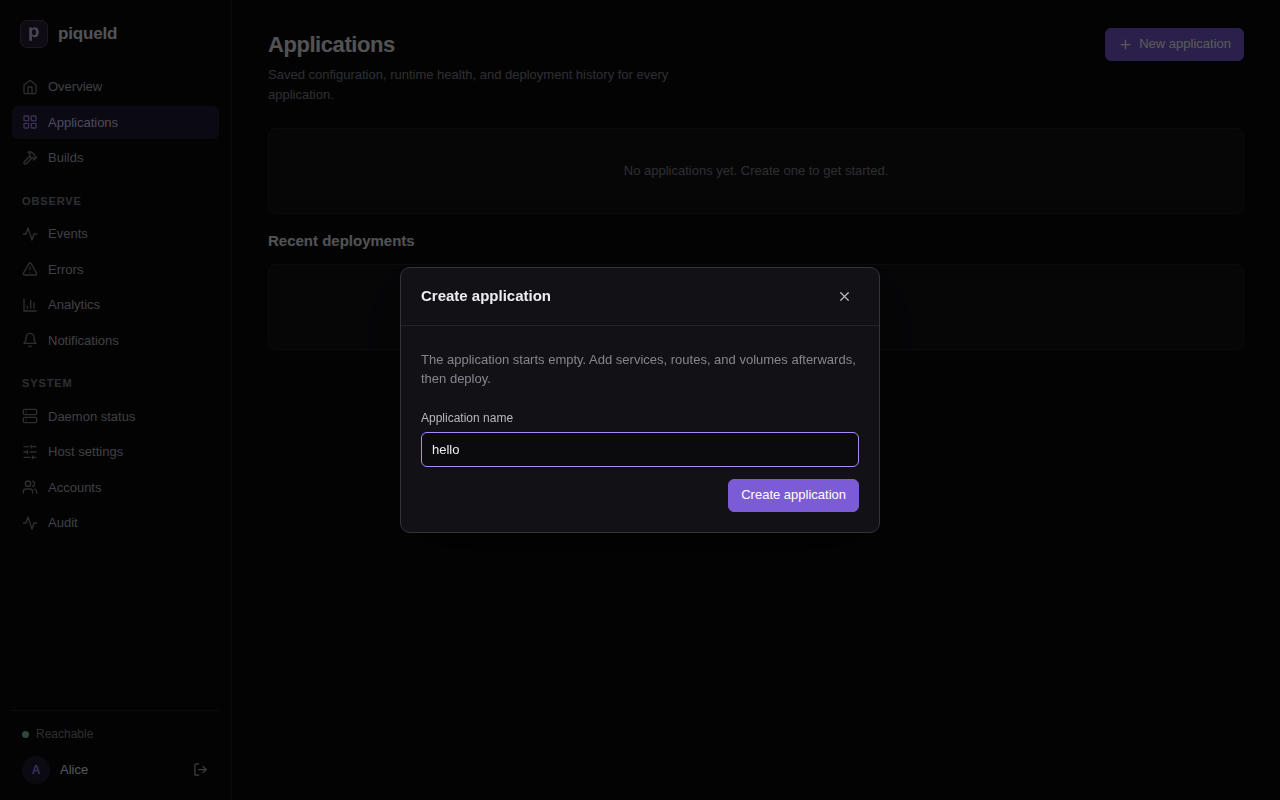
-
The application opens, empty. On its Services tab, select Add service, fill in Service name with
weband Container image withnginx:alpine, then select Add service.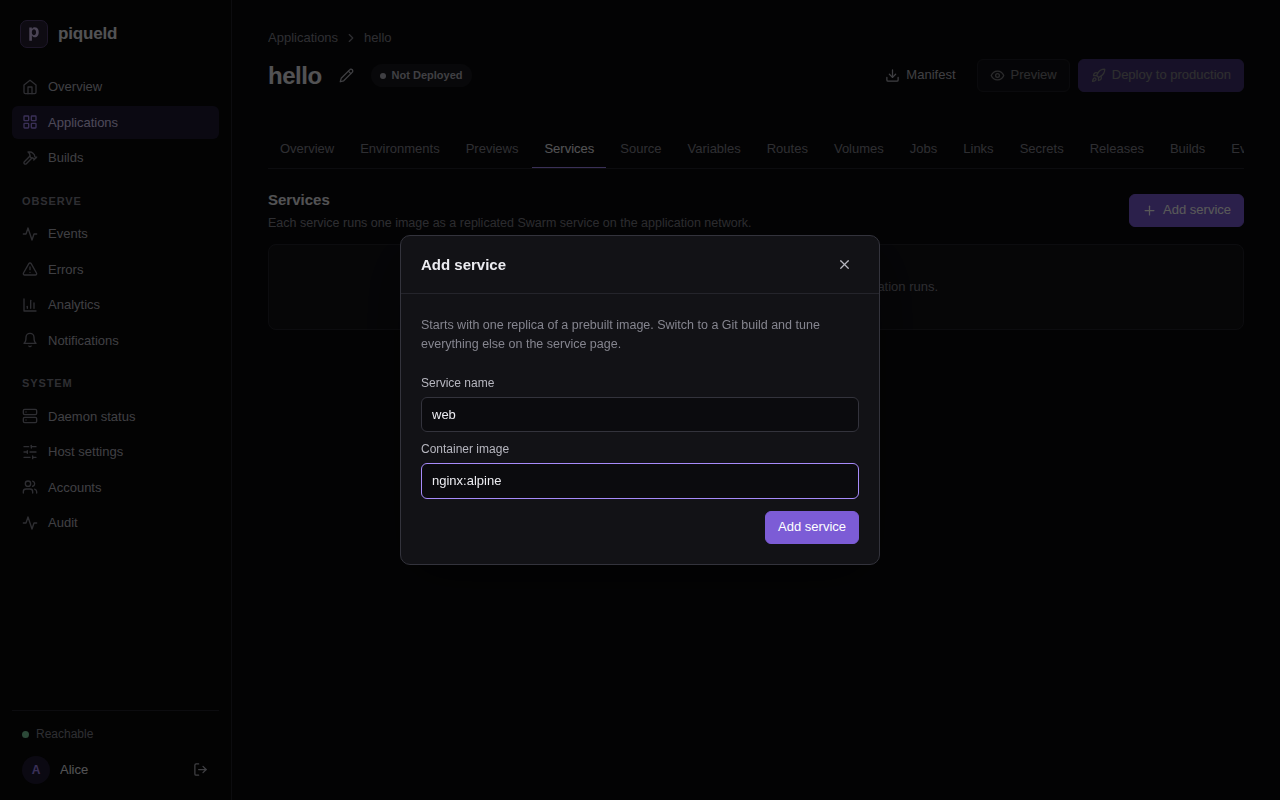
-
Select
webin the list, then its Health check tab. Set Check type to HTTP, Port to80and Path to/, and select Save changes.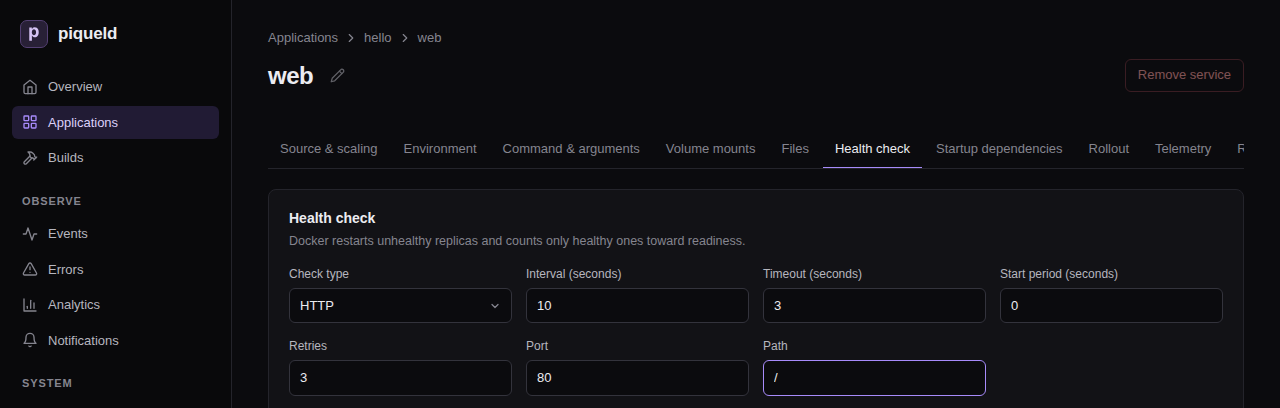
-
Saving changes the application’s configuration, but not what runs. Go back to the application’s page, through hello above the service’s name, and select Deploy to production.
With piquelctl
piquelctl app create hello
piquelctl app service add hello web nginx:alpine
piquelctl app service health http hello web 80 --path /
piquelctl app deploy hello
Each command asks you to confirm. The first three each save one change, and
app deploy deploys the saved configuration to the application’s
production environment. It prints each step and
waits until the deployment finishes. In a script, add --yes to skip the
confirmations.
From a manifest
A manifest describes the whole application in a TOML file. Save this one as
hello.toml:
api_version = "piqueld.dev/v1alpha1"
kind = "Application"

[metadata]
name = "hello"

[[spec.services]]
name = "web"

[spec.services.source]
type = "image"
image = "nginx:alpine"

[spec.services.healthcheck]
type = "http"
port = 80
path = "/"
Each [[spec.services]] entry is a service. Check the manifest, then save it
and deploy it to production:
$ piquelctl app validate --file hello.toml
Manifest is valid for application "hello".
$ piquelctl app apply --file hello.toml --deploy
To see what saving and deploying a change would do before you run it, select
Preview on the application’s page in the dashboard, or run
piquelctl app plan --file hello.toml. The manifest reference describes every
setting. piquelctl app manifest hello prints the manifest of an application
you created in the dashboard or with piquelctl.
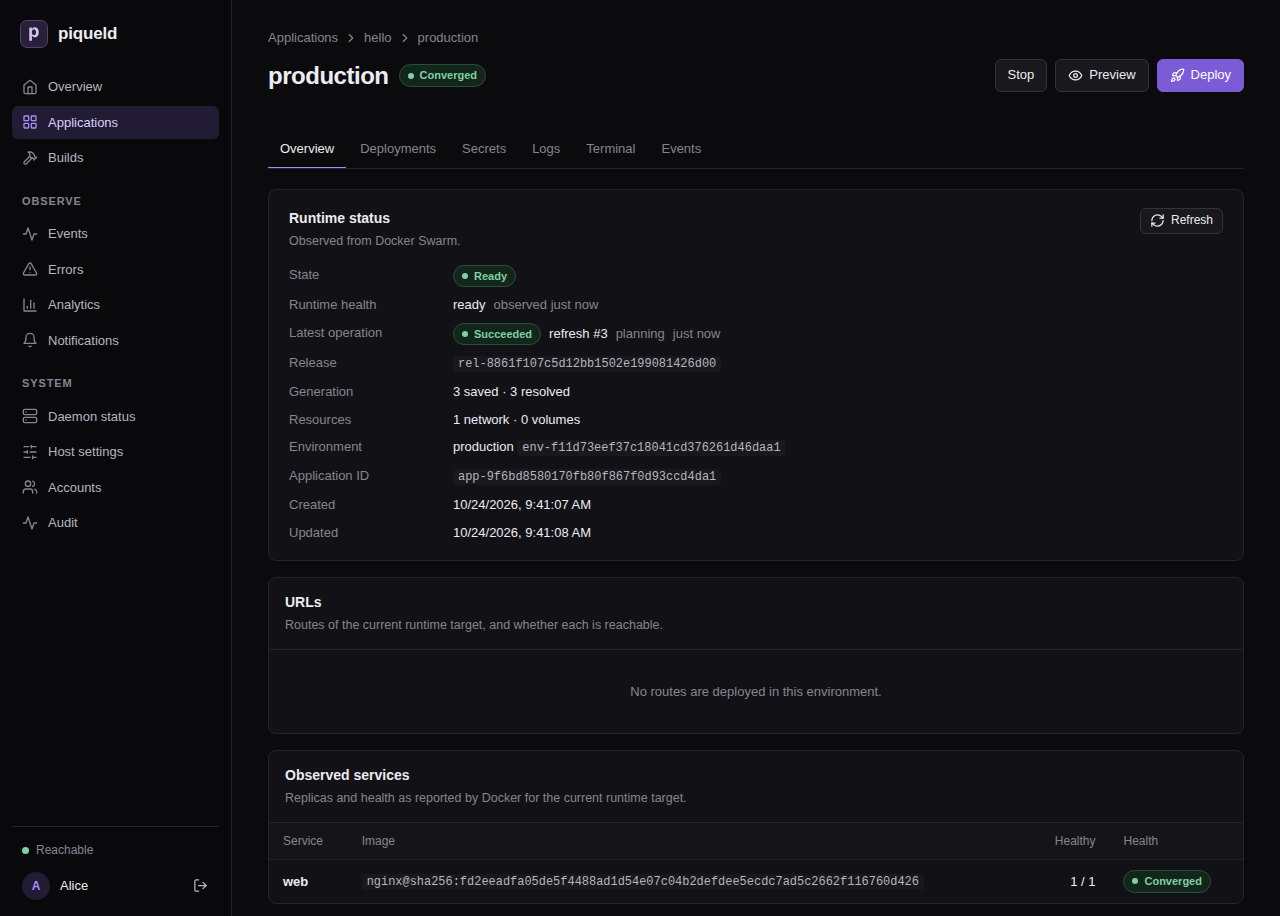
Check that it works
In the dashboard, the Overview lists the deployment under Recent deployments.
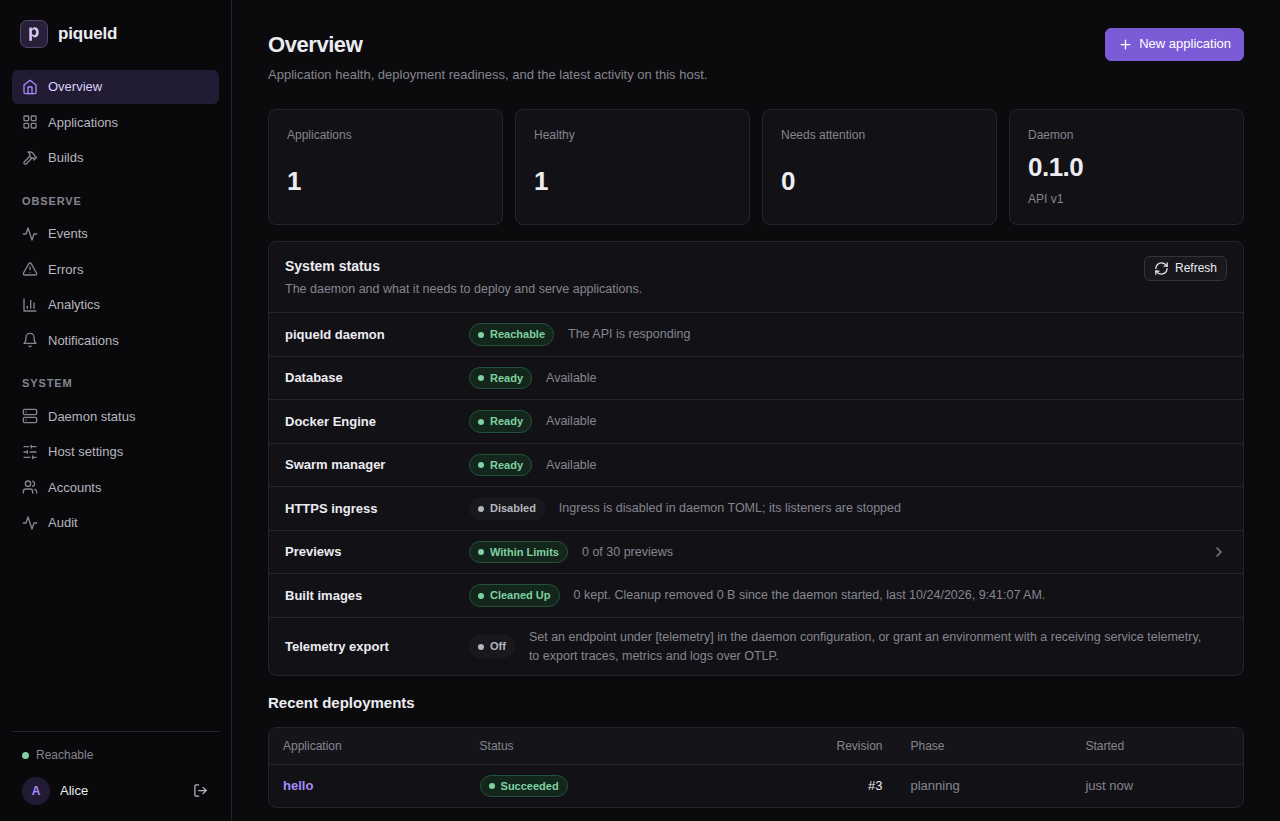
Open Applications, then hello, then production on its
Environments tab. Observed services lists web with one healthy
replica.
With piquelctl:
$ piquelctl app show hello
hello (app-f11d73eef37c18041cd376261d46daa1)

Configuration revision: 3
Environment: production (env-f11d73eef37c18041cd376261d46daa2): ready, deploys from saved

Service: web
  Replicas: 1
  Source: image nginx:alpine
Read the service’s output on the environment’s Logs tab, or with
piquelctl app logs hello. piqueld’s health checks show up there as requests
to /.
Change it
To run two replicas of web:
- In the dashboard, set Replicas to
2on the service’s Source & scaling tab, and select Save changes. Go back to the application through the hello breadcrumb, then select Deploy to production. - With
piquelctl, runpiquelctl app service replicas hello web 2 --deploy. - From the manifest, add
replicas = 2to the existing[[spec.services]]entry, then runpiquelctl app apply --file hello.toml --deployagain.
Next steps
- Put the website on an HTTPS address with a route.
- Add a
stagingenvironment, as in environments and promotion. - Build images from a Git repository, as in building images from Git.
When you’re done, delete the application. This removes its containers and history, and deletes its previews with their volumes. Its environments’ named volumes are kept, so that their data isn’t lost by accident. In the dashboard, select Delete application on the application’s Overview. Or run:
piquelctl app delete hello
Troubleshooting
piquelctltimes out. It waits 30 seconds by default, and pulling a large image can take longer. The deployment carries on: follow it in the dashboard, or givepiquelctllonger, such aspiquelctl --timeout 5m app deploy hello.- The deployment fails.
piquelctlprints the error. The environment’s Deployments tab shows each step, and Diagnostics on its Overview says what went wrong. - The service never becomes healthy. Check that the health check’s port and path match what the container serves, and read its logs.