Deploying on push
Keep an application’s manifest in its Git repository, next to its code. piqueld then reads the manifest from there each time it deploys, and can deploy every push to a branch.
Before you start
- You have an account, and
piquelctlis signed in. Run the commands on this page on the host, or on any machine wherepiquelctlis signed in. On another machine, keepPIQUELD_URLset, as when you signed it in. - The host can read the repository. For a private one, give the daemon’s user an SSH key.
- Creating the application needs
apps:create. Connecting it, and generating its webhook secret, needapps:writeon it. Deploying it, and turning on deploying on push, needapps:deploytoo; see permissions. - To deploy on push with a GitHub webhook, GitHub must reach the daemon. It needs HTTP ingress with a webhook hostname whose DNS is public, and you need to be able to change the GitHub repository’s settings.
Keep the manifest in the repository
This example deploys a static website. Its repository holds an index.html
page and, at its root, a Dockerfile that serves it on port 80:
FROM nginx:alpine
COPY index.html /usr/share/nginx/html/
Commit the application’s manifest next to them, for example as
infra/piqueld.toml, and push it to main:
api_version = "piqueld.dev/v1alpha1"
kind = "Application"

[metadata]
name = "blog"

[[spec.services]]
name = "web"

[spec.services.source]
type = "git"
repository = "self"

[spec.services.source.build]
type = "docker"
dockerfile = "Dockerfile"

[spec.services.healthcheck]
type = "http"
port = 80
path = "/"
With repository = "self", web builds the repository’s own Dockerfile, at
the commit the manifest was read from. See
building from the manifest’s own repository.
Connect the application to the repository
Create the application, empty, then connect it to the manifest and deploy it.
Until that first deployment, the application has no services, and its
production environment is not deployed: the deployment is what reads the
manifest. To connect an application you already run, skip creating it.
Warning: when you connect an application you already run, its environments without a branch of their own start following the branch you give, so their next deployment deploys that branch instead of the saved manifest. Environments with a branch, such as one set with
piquelctl env branch, keep it. Previews and promoted environments are unchanged.
In the dashboard
-
Open Applications, select New application, fill in Application name with
blog, and select Create application. The application opens, without services. -
On its Source tab, check Load configuration from Git on deploy. Fill in Repository with your repository’s URL, Branch with
main, and Manifest path withinfra/piqueld.toml, then select Save changes.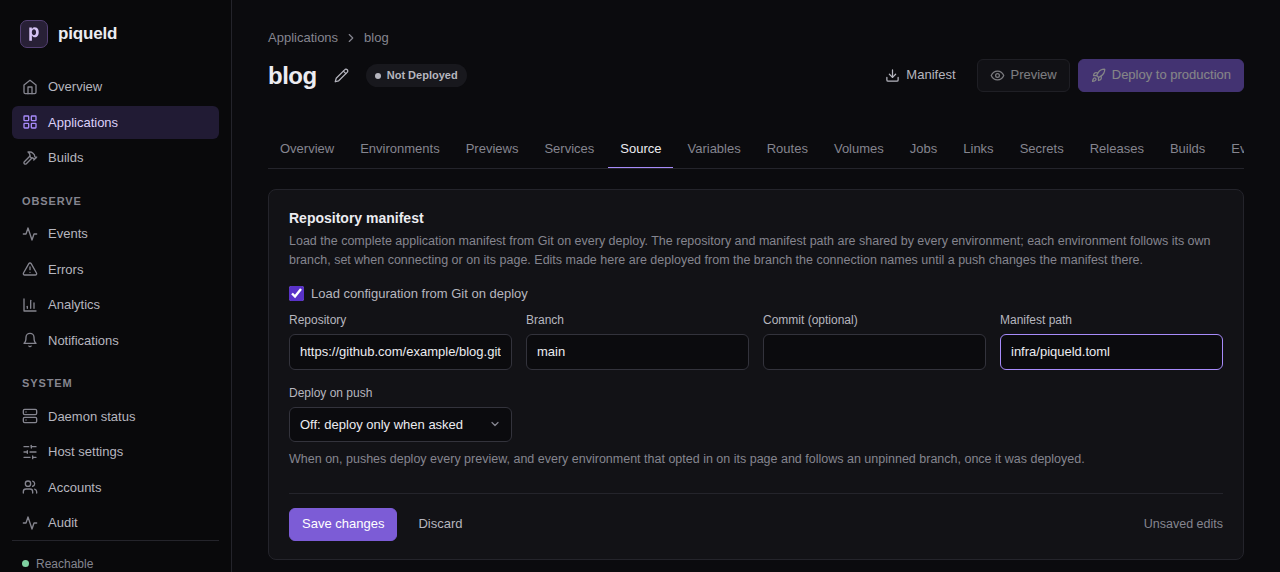
-
Select Deploy to production, at the top of the page.
With piquelctl
piquelctl app create blog
piquelctl app repository connect blog https://github.com/example/blog.git infra/piqueld.toml --branch main
piquelctl --timeout 10m app deploy blog
Use your repository’s URL instead of https://github.com/example/blog.git.
--branch is main by default.
The deployment reads infra/piqueld.toml from the latest commit of main,
builds web from that commit, and runs it:
$ piquelctl app show blog
blog (app-01a16d9202157fe18b0580467224f247)

Configuration revision: 3
Sync: off
Environment: production (env-01a16d9202157fe18b0580467224f248): ready, deploys from main

Service: web
  Replicas: 1
  Source: git self (manifest repository)
The application is now repository-backed: every deployment reads the file
again. The metadata.name in infra/piqueld.toml must stay blog.
The repository and the path belong to the application, and the branch to each environment. To deploy another branch to a staging environment, see environments.
To stop reading the manifest from Git, uncheck Load configuration from Git
on deploy on the Source tab and select Save changes, or run
piquelctl app repository disconnect blog. The application keeps its current
manifest. Its services with repository = "self" build from the repository’s
URL and branch instead.
Edit a repository-backed application
You can still edit the application. For example, to run two replicas of
web, set Replicas to 2 on the service’s Source & scaling tab and
select Save changes, or run:
piquelctl app service replicas blog web 2
A notice at the top of each of the application’s settings tabs, such as
Services and Variables, then lists how the application differs from
the repository. So does piquelctl app show:
Edited since read from the repository (reset with `app repository reset`):
  ~ services.web.replicas   1 → 2
Deployments of main deploy your edits, until a push changes
infra/piqueld.toml. That deployment deploys the file, which replaces your
edits. Previews, and environments that follow other branches, always deploy
the file of their own branch.
To discard your edits and save the repository’s manifest again, select Reset to repository on that notice, or run:
piquelctl app repository reset blog
Add --deploy to also deploy it.
Deploy another branch or commit once
To try another branch or commit in an environment without changing the
branch it follows, deploy it once. In the dashboard, select Deploy
revision on the environment’s page. Choose The head of a branch and
fill in Branch name, or A commit and its full Commit hash, then
select Deploy. With piquelctl:
piquelctl env deploy blog production --branch feat/login
piquelctl env deploy blog production --commit <full-commit-hash>
The deployment reads the manifest and builds from that branch or commit. Nothing is saved: the environment’s next deployment, or the next push to its branch when it deploys on push, returns to its own branch.
Deploy every push
Deploying on push is off by default. Turn it on for the application, then opt in each environment that should follow its branch. Every preview follows its branch as soon as it is on.
piqueld learns about pushes by polling: it checks the repository on an interval, between 60 and 86,400 seconds, and every 300 seconds by default. Polling works with any Git server. With GitHub, a webhook can report each push instead.
In the dashboard
-
On the application’s Source tab, set Deploy on push to Poll: check the branches on an interval, fill in Poll interval (seconds) with
120, and select Save changes. -
Open the environment, such as production on the Environments tab. On its Overview, select Deploy on push on its Source card.
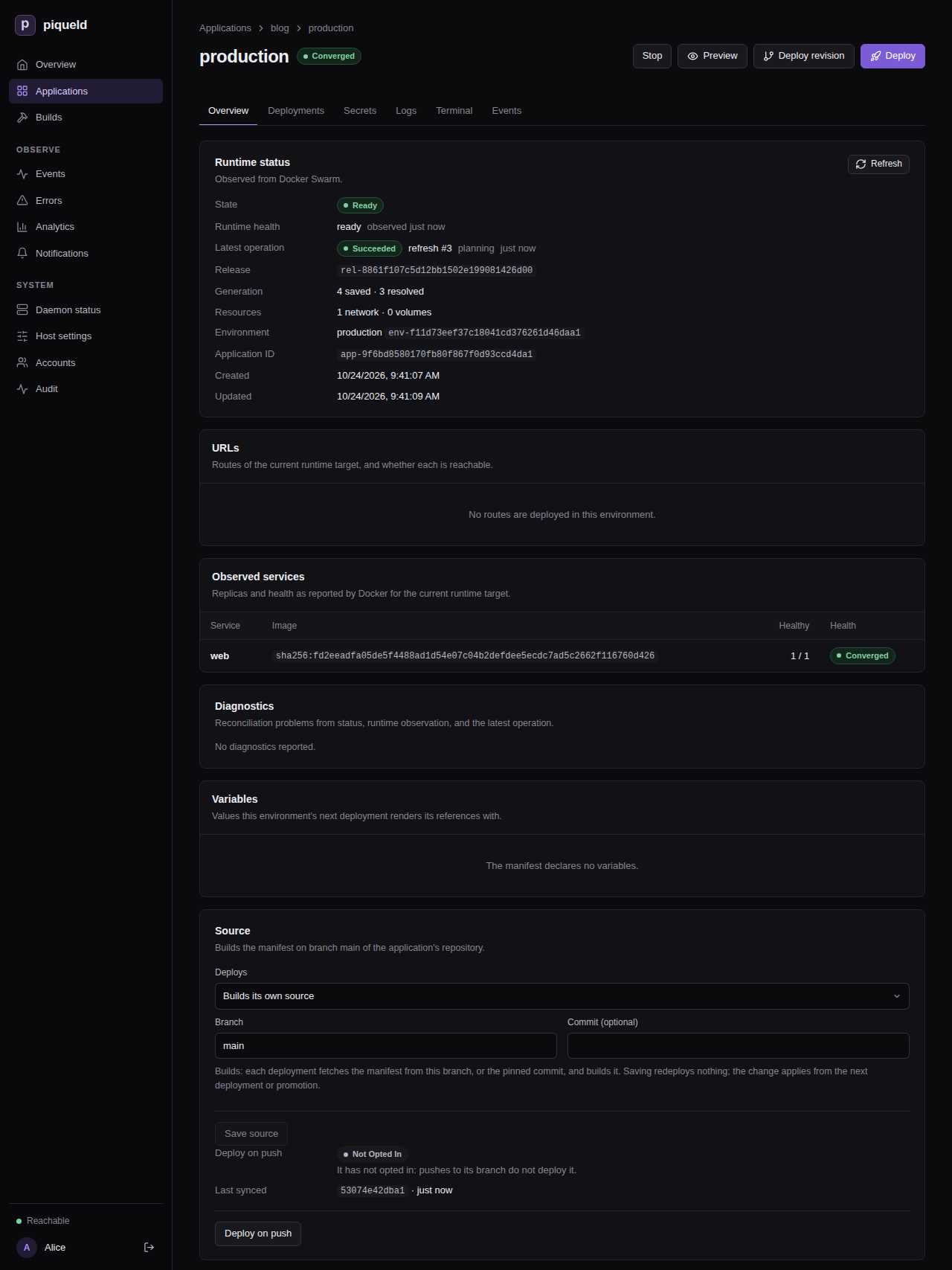
Stop deploying on push opts it out again.
With piquelctl
-
Turn polling on, every two minutes:
piquelctl app repository sync blog poll --interval 120 -
Opt the environment in:
$ piquelctl env sync blog production on
Environment production (env-01a16d9202157fe18b0580467224f248), deploys from branch main, opted into sync.
app repository connect takes the same --sync and --interval options, to
connect the application and turn it on at once.
In the manifest
An environment the manifest
declares opts in with
sync = true in its block. Turning deploying on push on for the application
stays in the dashboard or piquelctl: it is part of the connection to the
repository, which piqueld never reads from the repository’s file.
How it deploys
Once on, each environment that opted in deploys its branch’s latest commit whenever the branch moves past the commit it last deployed. An environment pinned to a commit doesn’t follow pushes. It starts following after its first deployment. A push during a deployment waits for it to finish, then the latest commit deploys, so commits pushed in between, or between two polls, don’t deploy on their own. A deployment that fails is not retried until the next push. A stopped environment doesn’t follow pushes: once started, it deploys the latest commit it missed. When the daemon starts, it checks the repository once, in case it missed pushes while it was stopped.
Deploy on push with a GitHub webhook
With a webhook, GitHub tells piqueld about each push, so pushes deploy within seconds. piqueld then lists the repository’s branches itself: a delivery can’t choose what deploys.
Switch the application to webhooks, and generate the webhook’s secret, in the
dashboard or with piquelctl. Then add the webhook in GitHub.
In the dashboard
-
On the application’s Source tab, set Deploy on push to Webhook: when GitHub reports a push, and select Save changes. A GitHub webhook card then lists the settings for GitHub.
-
Opt the environment in on its Overview, if you haven’t yet, as in deploying every push.
-
On the GitHub webhook card, select Generate secret. The card shows the secret once, with a Copy button, until you select Done or leave the Source tab.
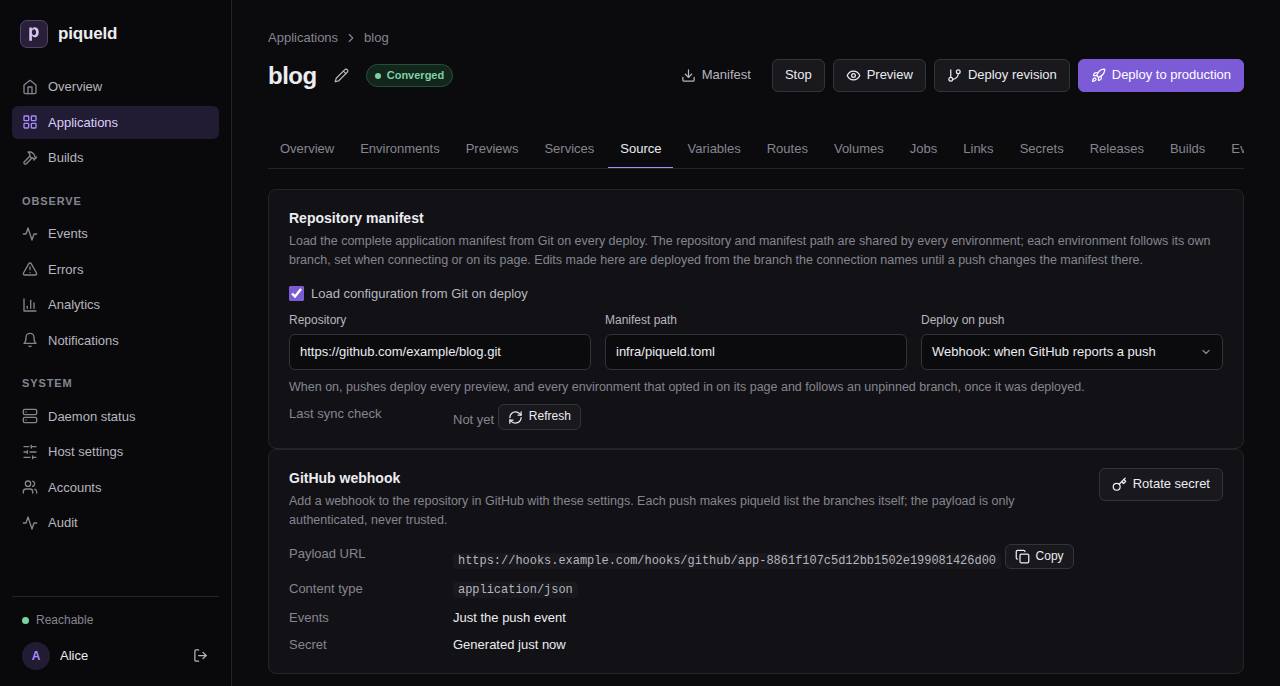
With piquelctl
-
Switch the application to webhooks:
piquelctl app repository sync blog webhook -
Opt the environment in, if you haven’t yet:
piquelctl env sync blog production on -
Generate the webhook’s secret:
$ piquelctl app repository webhook rotate blog
Payload URL: https://hooks.example.com/hooks/github/app-01a16d9202157fe18b0580467224f247
Secret: 3f9c…
Configure this secret in GitHub now; piqueld never shows it again.
The command asks you to confirm first; in a script, add
--yes.
piquelctl app repository webhook show blog prints the same settings later,
without the secret. Without a payload URL, it says that the daemon must set
ingress.webhook_hostname.
In GitHub
Keep the secret at hand: piqueld can’t show it again. In GitHub, open the repository’s Settings, then Webhooks, and select Add webhook. Set:
- Payload URL to the payload URL piqueld shows;
- Content type to
application/json; - Secret to the secret you generated;
- the events to Just the push event.
Then select Add webhook.
Rotate the secret
Generating a new secret replaces the old one at once: GitHub’s deliveries fail
until you update the secret there too. In the dashboard, it is Rotate
secret on the GitHub webhook card, which asks you to confirm. With
piquelctl, run:
piquelctl app repository webhook rotate blog
It asks you to confirm every time; in a script, add --yes.
Check that it works
Push a commit to main, then open the environment. Its Source card says
following under Deploy on push, and Last synced is the commit its
last deployment found on main. Last sync check, on the application’s
Source tab, says when piqueld last listed the repository’s branches, or
why it couldn’t.
With piquelctl:
$ piquelctl env show blog production
production of blog (env-01a16d9202157fe18b0580467224f248)

Intent: ready
Runtime: ready (observed 2 s ago)
Source: main
Sync: following, last synced 44928efc5d3229a7b6a918182df49a32afc18a3e
Release: rel-01a16d9438b27093811074404283fef8
Configuration revision: 6
Resolved revision: 6
following means pushes deploy it, and last synced is the commit its last
deployment found on main. piquelctl app show blog also prints
Last sync check: succeeded, or the error of the last check.
Each deployment that follows a push records a branch_synced event, such as
branch main moved to 44928ef…, requested by sync:poll or sync:webhook.
They are on the application’s Events tab, and in piquelctl events.
With a webhook, GitHub’s Recent Deliveries, on the webhook’s settings,
shows each delivery and piqueld’s response: 204 when it was accepted.
Troubleshooting
-
A push deploys nothing. The environment’s Source card says why under Deploy on push, and so does the
Syncline ofpiquelctl env show:offwhen the application doesn’t deploy on push,off (not opted in)when the environment isn’t opted in,off (pinned)when it deploys a pinned commit,off (stopped)when it is stopped, andoff (waiting for a deployment)until its first deployment, or the first one after its branch or the repository’s URL changed. A deployment that failed waits for the next push: deploy by hand to retry it. -
Last sync checkreports an error. piqueld couldn’t list the repository’s branches. Git’s error is in the daemon’s log (journalctl -u piqueld). piqueld tries again after a minute, then waits longer each time, up to an hour. For a private repository, see building from a private repository. -
The deployment fails with
manifest_fetch_failed. piqueld couldn’t read the repository. Git’s error is in the daemon’s log (journalctl -u piqueld). For a private repository, see building from a private repository. -
GitHub’s deliveries get
401. The secret doesn’t match, or the payload URL names another application. Generate a new secret, and copy it and the payload URL into GitHub again. -
The deployment fails with
manifest_not_found. There is no file at the manifest’s path on that commit. Correct Manifest path on the Source tab, or runpiquelctl app repository path blog infra/piqueld.toml. -
A deployment warns about
manifest_connection_ignored. The file’s own[spec.manifest]names another repository or path. piqueld ignores it and keeps the application’s connection. Change the connection on the Source tab, or withpiquelctl app repository urlorpiquelctl app repository path. -
Your edits are gone. A push changed the manifest file, and its deployment replaced them. Make the change in the repository instead.
-
piquelctl app renamefails withrepository_managed. The name must match the repository’s manifest. Disconnect the application, rename it, and changemetadata.namein the repository. Then connect it again, with the deploy-on-push mode it had:piquelctl app repository connect <new-name> https://github.com/example/blog.git infra/piqueld.toml --sync pollFinally, reset each environment’s branch with
piquelctl env branch, and deploy each one.